
Your accounts payable report says a vendor is owed $40,000. But is that the amount your business actually needs to pay?
Perhaps you paid the supplier an advance last month. There may also be a credit for goods returned, or an adjustment waiting to be applied to an open bill. Until someone checks those transactions, the outstanding balance tells only part of the story.
This is a common challenge for finance teams managing a growing number of suppliers. NetSuite stores the information needed to manage these transactions, but finding the right details across individual vendor records and reports can take time.
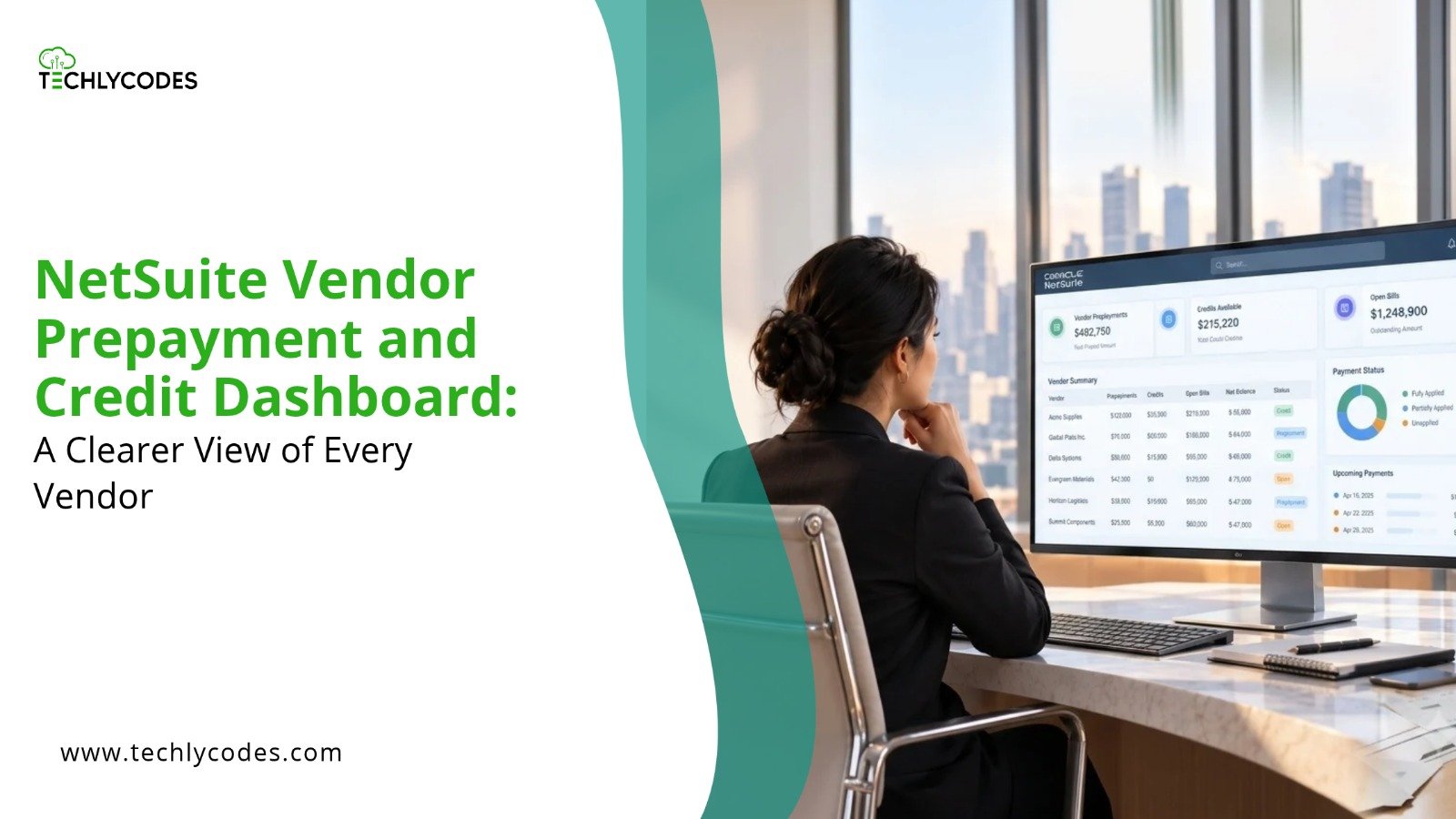
A NetSuite vendor prepayment and credit dashboard brings the relevant information into one view. It gives finance teams a quicker way to review outstanding bills, advance payments, unused credits, and payment history before deciding what needs attention.
Why Vendor Payments Become Difficult to Track?
When a business works with a handful of suppliers, keeping track of advances and credits may seem straightforward. The finance team knows the vendors, recognises the transactions, and can usually find an answer with a quick search.
That becomes harder as the business grows.
A supplier might receive an advance against a purchase order in one month and send the final bill in the next. Another might issue a credit after a shipment arrives with missing or damaged goods. Meanwhile, the AP team has invoices due, payment approvals to complete, and month-end figures to reconcile.
The problem is not necessarily missing data. It is the time spent bringing the relevant information together.
Without a convenient consolidated view, employees may need to open several records before they can answer a simple question: how much do we owe this supplier after accounting for payments and credits already recorded?
That extra effort can slow down payment reviews and make it harder to spot transactions that still need attention.
How Vendor Prepayments and Vendor Credits Work in NetSuite
Before bringing these transactions into a dashboard, it helps to understand what each one represents. They affect vendor payments in different ways and should remain distinguishable in financial reporting.
Vendor prepayments: Money paid before the bill
A vendor prepayment is an advance paid to a supplier before the related purchase has been fully billed. Businesses commonly use advances when ordering stock, commissioning equipment, or agreeing to supplier terms that require payment upfront.
Consider a manufacturer that places a $50,000 order for raw materials. The supplier requests a $15,000 advance before production begins.
The company records the advance in NetSuite. When the supplier later submits the bill, the finance team can apply the eligible prepayment against it. If the full $15,000 is applied to the $50,000 bill, the remaining amount payable is $35,000, assuming no other adjustments.
NetSuite supports vendor prepayment records and their application to vendor bills. The exact workflow depends on the transaction setup and the features enabled in the account.
For the AP team, the important question is whether any part of the advance remains unapplied.
Vendor credits: Amounts available to offset supplier bills
Vendor credits usually arise when a supplier reduces an amount previously charged or owes the business an adjustment. Returns, pricing disputes, and billing corrections are common examples.
Imagine a supplier issues a $2,000 credit after accepting returned goods. The business can apply that credit against an eligible outstanding bill, reducing the amount it needs to pay.
The credit should remain visible until it has been appropriately applied or otherwise resolved. Otherwise, the finance team may overlook it when reviewing the next payment.
NetSuite provides vendor credit records and application workflows for this purpose. A dashboard makes those records easier to locate; it does not replace the underlying accounting process.
What Belongs on a NetSuite Vendor Prepayment and Credit Dashboard?
A useful dashboard answers the questions the AP team asks every day. It should not become another screen full of figures that employees have to interpret manually.
1. Outstanding vendor bills
Start with the bills that still need attention. Show the vendor name, bill reference, due date, outstanding amount, and relevant approval or payment status.
Filters for overdue bills, upcoming payments, and transactions awaiting approval can help employees prioritise their work.
2. Unapplied vendor prepayments
Advance payments deserve their own view. Include the original amount, amount already applied, remaining unapplied amount, transaction date, and related purchase order where applicable.
An aging view can also be useful. An advance that has remained unapplied for several months may need investigation, particularly if the expected supplier bill has not arrived.
3. Available vendor credits
A list of open vendor credits helps the AP team identify amounts that may be applied before paying outstanding bills.
The useful details are straightforward: vendor, credit reference, original amount, remaining amount, date, and application status. A link to the underlying record lets the user check the transaction before taking action.
4. Payment history
Previous payments help explain the current position of a supplier account. Showing payment dates, references, amounts, and linked bills makes it easier to respond to vendor queries or investigate a discrepancy.
Keep completed payments separate from outstanding obligations. Otherwise, users may mistake historical transactions for amounts that still need to be paid.
5. A vendor-level summary
The real value comes when users can review the relevant information for one supplier without manually gathering it from several places.
For example, a vendor summary might show:
| Vendor transaction | Example amount |
| Open vendor bill | $50,000 |
| Eligible prepayment applied | $15,000 |
| Vendor credit applied | $2,000 |
| Remaining amount payable | $33,000 |
These figures are illustrative. The example assumes that both the prepayment and credit have been applied to the same bill and that no other adjustments affect the balance.
The dashboard should also show unapplied amounts separately. An available credit or advance should not automatically be treated as though it has already reduced a particular bill.
What Changes When Finance Teams Have This View?
The immediate benefit is less time spent searching for information. But the impact can extend beyond convenience.
- Payment reviews become more informed. Before releasing a payment, employees can check the relevant bill, prepayment, and credit records together.
- Unused credits are easier to spot. A visible list gives the team a reason to investigate credits that have remained open rather than leaving them buried in transaction records.
- Vendor queries take less time. When a supplier asks about an outstanding invoice or previous payment, the AP team has a clearer starting point for its investigation.
- Month-end reviews become more focused. Old advances, outstanding bills, and unapplied credits can be reviewed as part of the regular close process.
None of these outcomes happens automatically just because a dashboard exists. The underlying records must be accurate, and employees still need to follow the appropriate accounting and approval procedures.
Building the Dashboard in NetSuite
The right approach depends on what your finance team needs to see and how much detail it wants to bring together.
For a relatively simple reporting requirement, NetSuite saved searches and dashboard portlets may be enough. SuiteAnalytics Workbook is another option for reporting and visualising transaction data. More specialised layouts or workflows may require custom development.
Start by examining the questions that currently take the longest to answer. If employees repeatedly switch between vendor records, open bills, and prepayment applications, those are good candidates for the first version of the dashboard.
Next, decide which fields matter and how each amount should be calculated. This deserves particular attention when presenting a vendor’s overall position. Original prepayment amounts, remaining balances, applied credits, and outstanding bills are different measures. Combining them without clear rules can make the dashboard misleading.
Testing matters just as much as design. Compare dashboard figures with the underlying NetSuite transactions. Check partial applications, cancelled transactions, overdue bills, and credits that have been used only in part.
Finally, review access permissions. Employees should only see financial information and perform transaction actions allowed by their assigned roles.
If the standard reporting options do not provide the view your team needs, NetSuite customization services from TechlyCodes can help assess the available options and determine whether a tailored dashboard is appropriate.
Common Dashboard Mistakes Worth Avoiding
A NetSuite vendor prepayment and credit dashboard is only useful when its figures are accurate, relevant, and easy to interpret. Watch out for these common mistakes:
- Counting unapplied prepayments as bill payments: Show advance payments separately from amounts already applied to vendor bills.
- Displaying incorrect credit balances: Account for partial applications and show the remaining vendor credit, not just the original amount.
- Ignoring overdue bills and ageing advances: Highlight overdue invoices and long outstanding prepayments that need follow-up.
- Overloading the dashboard: Prioritise key details such as outstanding balances, due dates, payment status, and available credits.
- Skipping regular checks and maintenance: Reconcile dashboard figures with NetSuite records and review saved searches, calculations, and access permissions as business requirements change.
Give Your Finance Team a Better View of Vendor Transactions
A vendor prepayment and credit dashboard is useful for a simple reason: finance teams should not have to piece together several records every time they review a supplier payment.
NetSuite already provides the underlying vendor transaction records and application workflows. Bringing the right information together can make those records easier to review, help employees identify outstanding items, and support more informed payment decisions.
The best design starts with your actual AP process, not a long list of dashboard features. Identify the questions your team struggles to answer, agree on how the figures should be calculated, and build around those requirements.
Frequently Ask Question
Q.1 What is a NetSuite vendor prepayment and credit dashboard?
Ans: A NetSuite vendor prepayment and credit dashboard brings key supplier transaction details into one view, including outstanding bills, unapplied prepayments, available vendor credits, and payment history. It helps accounts payable teams review vendor balances without checking multiple records individually.
Q.2 Can NetSuite track vendor prepayments and outstanding bills?
Ans: Yes. NetSuite supports vendor prepayment records and their application to eligible vendor bills. Saved searches, dashboard portlets, or other reporting options can help finance teams review prepayments alongside outstanding bills, depending on their account configuration.
Q.3 How can I find unused vendor credits in NetSuite?
Ans: Finance teams can review vendor credit records and their application status in NetSuite. Saved searches or a customised accounts payable dashboard can make remaining credit amounts easier to identify and review before processing supplier payments.
Q.4 What should a NetSuite vendor prepayment dashboard include?
Ans: A useful dashboard can display outstanding vendor bills, unapplied prepayments, available vendor credits, payment dates, transaction references, due dates, and application status. Showing remaining balances separately from original amounts helps prevent confusion during payment reviews.
Q.5 Can a NetSuite dashboard help reduce duplicate vendor payments?
Ans: A well-designed dashboard can improve visibility into outstanding bills and recorded payments, helping employees review transactions before releasing payments. However, it does not automatically prevent duplicate payments; appropriate approval procedures, accurate records, and payment controls are still necessary.
Leave a Reply